
Here are a few screenshots of my Universe Builder plug-in in action:
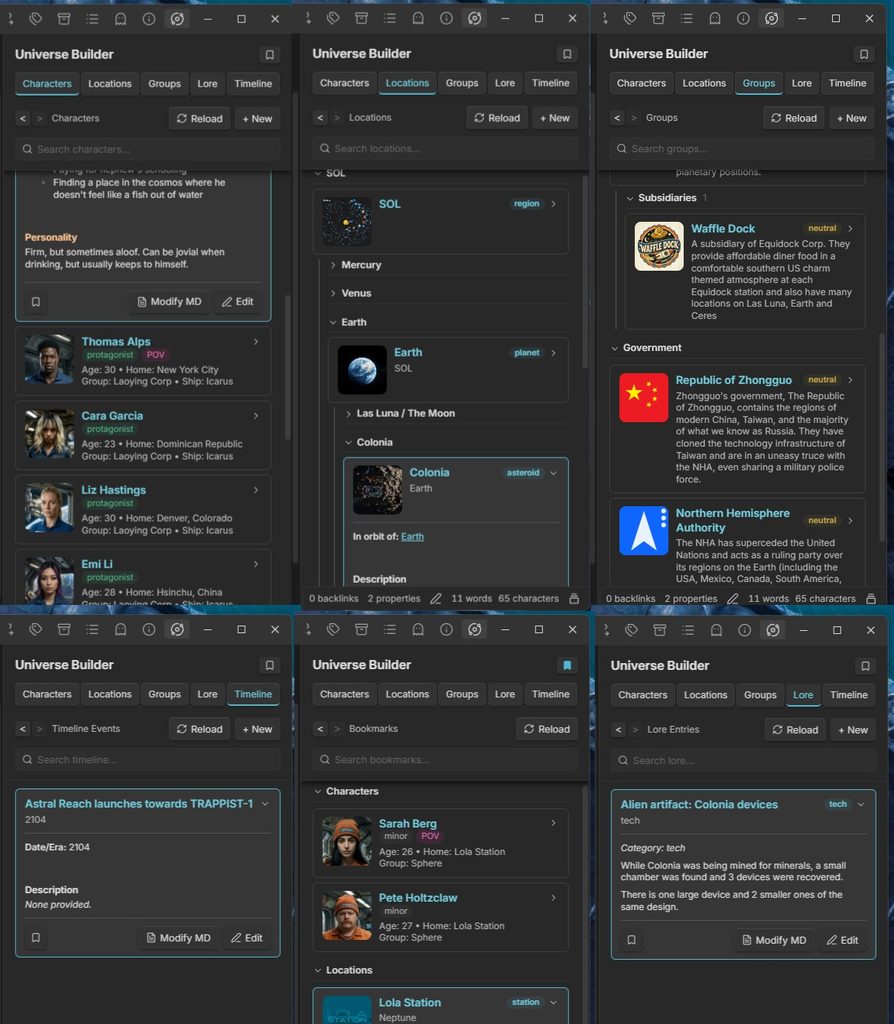
Available on Obsidian: https://community.obsidian.md/plugins/universe-builder
Available on GitHub: https://github.com/liamhatherton/universe-builder
My main goal was to keep lore, character and plot notes as contained as possible to the sidebar, rather than rely on frequently opening *.md files in the center view.
Universe Builder has the following features:
- Characters — name, role, age, group, ship, home, physical description, personality, goals
- Locations — name, type, parent location, description, inhabitants, secrets
- Groups — name, type, subsidiary of, alignment, goals, enemies, allies, description
- Lore Entries — title, category (history/tech/religion/culture/other), content
- Timeline Events — date/era, title, description, linked characters/locations
- World Sidebar — tabbed view across all five entry types
- Bookmarks — bookmark any entry from its expanded view, and open them all from the Bookmarks button in the section header
- Search — a search bar pinned under the section header on every tab (each tab keeps its own text); type to hide whatever doesn’t match, all words must match. Characters are matched on name, group, ship and home; the other tabs on the name and the text of the note
- New location types: planet, dwarf planet, moon, station, asteroid, belt and ship, alongside the original city/region/building/landmark/other
- Optional Ship and Home fields on characters. Both are in the New Character form and written to the note’s frontmatter.
- Group types. Groups get a Type dropdown (Corporation, Government, Military, Criminal), saved to frontmatter and shown in the note body.
- Entry portraits (for characters, locations and groups) – Each card shows a thumbnail of the first image embedded in the note (wiki or markdown embeds, local files or image URLs). Portrait and border sizes were adjusted afterwards.
- Expandable cards. Clicking a card expands a text-only preview of the note inside the sidebar instead of opening it. The preview leaves out frontmatter, images and the repeated title heading, and has a Modify MD button to open the note.
- Characters grouped by group. Each group gets a collapsible section, sorted alphabetically with “No Group” last. Collapsed state is remembered.
- Group logos on character group headers. The logo is the first image in the matching group note.
- Drag-and-drop ordering. Cards can be dragged into a custom order. This started with characters (within their group group) and now covers every tab. The order is saved in plugin data (notes are never modified) and still applies after a note is renamed.
- Hierarchical Locations tab. Locations nest under their
parentlocation (plain names and[[wiki links]]both work, and cycles are ignored). Each level can be reordered separately, and dragging a parent moves its whole subtree with it. - Collapsible location tree. Every location has a collapsible label, and collapsing a parent hides its subtree. Nested labels keep their own saved state.
- Ships section. Ship-type locations are never nested because they move around. They get their own collapsible Ships section at the bottom of Locations.
- Groups grouped by type into collapsible Corporation / Government / Military / Criminal / Unassigned sections, each with its own drag-to-reorder list. An group with a
subsidiary-ofproperty (set from the New Group form, or by hand; plain names and[[wiki links]]both work) is shown under its parent’s card in a collapsible Subsidiaries label instead of its own type section. If the parent can’t be found, it stays in its type section.
UI Navigation and Search
- Static sidebar header. The title, tabs, section header and search bar stay put while the list below scrolls, with a shadow when the list is scrolled. Scroll position is kept across redraws.
- Search Bar. The search bar sits under each tab’s section header, and each tab keeps its own query. Every word typed must match, ignoring case and accents. Characters match on name, group, ship and home, and the other tabs on the name plus the note text. Non-matching cards and empty groups are hidden, a “No … match” line appears when nothing matches, and Esc or the clear button resets the search. On Locations, the parents of a matching entry stay visible.
- Back/Forward navigation. Back and forward buttons in the section header step through a history of tab switches and expanded cards. The current card gets an accent border.
- Wiki links inside the sidebar. Clicking a
[[link]]in an expanded preview jumps to that entry’s card: it switches tab, opens collapsed groups, clears a hiding search, then expands and scrolls to the card. Links outside the world folder open normally. - Reload button in the section header, to redraw the sidebar on demand in you want to edit Universe Builder data outside of the plugin and then reload to reflect the changes.
- Bookmarks. Every expanded entry has a bookmark button on the left of its footer (opposite Modify MD / Edit); it turns the accent color when the entry is bookmarked. A Bookmarks button to the left of Reload in each section header swaps the list for a Bookmarks view, with bookmarked entries grouped by section (collapsible and drag-to-reorder). Clicking the button again returns to the last section. Bookmarks are kept in plugin data and follow renames.
- Click-to-zoom photos. When an entry with a photo is expanded (Characters, Locations, Groups and Bookmarks), hovering the photo shows a magnifier badge in its top-right corner, and clicking it opens the image full-screen. Scroll to zoom, drag to pan, and click or press Esc to close, with no need to open the note first.
- Double-click to collapse a section. Double-clicking the tab you’re already on (Characters, Locations, Groups, Lore or Timeline) closes every expanded card and folds every collapsible group in that section. The folded state is saved like a manual fold.
- Inline editing in the sidebar. An expanded entry’s footer has Modify MD (opens the note in the main editor) and Edit. Edit replaces the preview with Obsidian’s own Live Preview editor for the note’s text (formatting shown as you type,
[[link]]suggestions, editor hotkeys such as bold), with the note’s properties in a small raw YAML Properties box above it. The buttons become Cancel and Save. Nothing is written to the file until you Save, which updates the note and returns to the preview, with the card’s name, badges and grouping updated. Cancel discards the changes (asking first if anything changed). Only one entry is edited at a time: clicking Edit on another card saves the open one first. Ctrl/Cmd+S or Ctrl/Cmd+Enter also save, Esc cancels, and collapsing a card with unsaved edits asks first. If the note was changed elsewhere while you were editing, saving asks before overwriting it. The Live Preview editor relies on an undocumented Obsidian API (see Undocumented Obsidian API); the Sidebar editor setting switches to a plain raw-markdown text box instead. - Drag an image onto a card to set its portrait. Drop an image file (e.g. from File Explorer) onto any Characters, Locations or Groups card, collapsed or expanded; the card is outlined while the image is over it. If the entry already has a portrait, you’re asked whether to replace it: No changes nothing, Yes swaps that image’s embed for the new one in place (keeping any size such as
|300). If it has no portrait, the image is embedded at the very top of the note, right after its properties and before the title heading. Images from outside the vault are copied into your attachment folder (per Obsidian’s Files and links settings), the same as dropping them into the editor; images already in the vault are linked where they are.
Universe Builder started as a fork of a plug-in called Obsidian World Builder by wesswart77. It has been expanded with many new features.